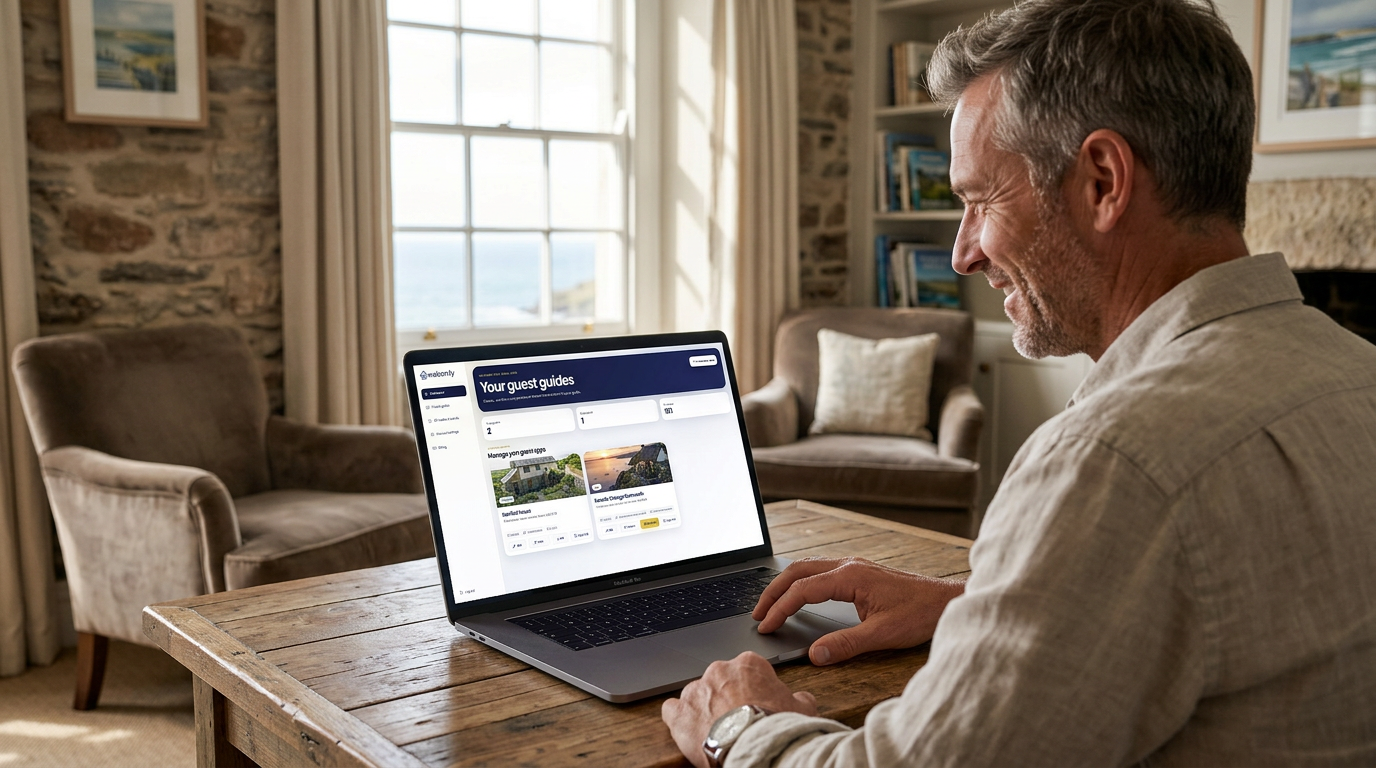
Welcomly subscriptions are associated with published guides. If you manage several properties, check the guide name as well as the payment date when reviewing a charge.
In this guide
A useful billing enquiry
Tell support which guide is involved, what you expected to happen and the approximate payment date. If you have a receipt or invoice reference, include that reference with unnecessary personal details removed. Explain whether the issue is a declined payment, an unexpected renewal or a guide that is not live. This is more useful than sending a screenshot of full payment-card details.
Who handles Welcomly payments?
Welcomly payments are handled securely through Stripe.
Stripe is the payment platform used to process card payments, manage billing details and handle active guide subscriptions.
When you activate a guide, you will be taken through a secure Stripe checkout process.
Welcomly does not ask you to send payment information manually by email, message or bank transfer.
When are payment details needed?
You only need to enter payment details when you are ready to activate a guide.
You can create and preview your Welcomly guide before activation, so you can check the guide properly before making it live for guests.
Payment details are not needed just to start building your guide.
They are only needed when you choose to activate a guide through the checkout process.
What happens during checkout?
When you choose to activate a guide, you will be taken to Stripe checkout.
During checkout, you can review the payment details shown on screen and enter your billing information securely.
After checkout is completed, your guide activation can be confirmed and the guide can be made available for guest use.
If you are returned to the owner portal after checkout, check your dashboard or the Publish section of the guide editor to confirm the guide status.
Where can I see whether a guide is active?
You can check the activation status of your guides from the owner dashboard.
The dashboard shows your property guides and their current status, helping you see which guides are active and which are still drafts or not yet activated.
You can also check the Publish section inside the guide editor for more information about a specific guide.
How billing works per guide
Welcomly is based around individual property guides.
Each property guide has its own activation status, public guide link, QR code and guest PIN.
If you manage more than one property, each guide can be activated and managed separately.
This makes it easier to keep your guides organised and only activate the ones you are ready to use with guests.
How to update payment details
If you need to update your payment card or billing details, this is handled through Stripe’s secure billing area.
You should use the billing or account option available inside the Welcomly owner portal, if shown.
This will take you to the secure Stripe billing area where you can manage your payment information.
Do not send card details or payment information by email or message.
How to manage your subscription
If you need to manage an active guide subscription, use the billing option available in your owner portal.
This may allow you to view billing information, update payment details or manage the subscription connected to an active guide.
Because billing is handled through Stripe, subscription management is usually completed through Stripe’s secure billing tools.
If you are unsure which guide a subscription relates to, check your owner dashboard and guide status first.
How to cancel a guide subscription
If you no longer need a guide to remain active, you can manage or cancel the subscription through the billing area provided in the owner portal.
Cancellation options are handled through Stripe’s secure billing tools.
Before cancelling, make sure you understand what will happen to the guide after the active subscription ends.
If the guide is no longer active, guests may no longer be able to access it as a live published guide.
What happens to a guide after cancellation?
If a guide subscription is cancelled or no longer active, the guide may no longer be available to guests as a live guide.
You may still be able to view or manage the guide inside the owner portal, depending on the status shown in your account.
If you plan to use the guide again in the future, check the dashboard for available options to reactivate or manage the guide.
Before cancelling a guide used by current guests, make sure you have considered whether they still need access.
What happens if a payment fails?
If a payment fails, the guide subscription or activation status may be affected.
This can happen if a card expires, payment details change, or the bank declines the payment.
If you are notified about a failed payment, check your billing area and update your payment details if needed.
After updating your details, check the guide status in the owner dashboard to make sure the guide is still active.
What if checkout does not complete?
If checkout is started but not completed, the guide may remain as a draft or inactive guide.
You can usually return to your owner dashboard and start the activation process again.
If the guide does not appear as active after checkout, check whether the payment was completed successfully.
You should also refresh the dashboard and check the Publish section of the guide editor.
Can I create a guide without paying?
Yes. You can create and preview your guide before activating it.
This lets you build the guide, add guest information, test the guest experience and check how everything looks before paying to make it live.
You only need to go through checkout when you are ready to activate the guide for real guest use.
Are printed QR products included?
Optional printed QR products are separate from guide activation.
These may include items such as laminated QR cards or acrylic QR stands.
Your guide includes a QR code that you can download and use, but printed display products are optional add-ons.
If you order a printed QR product, it is separate from the guide activation itself.
What billing information should I check?
When managing billing, check that your details are accurate.
This may include:
- payment card details
- billing email address
- business or personal billing name
- billing address
- active guide subscriptions
- payment status
Keeping billing details up to date helps prevent failed payments or interruptions to active guides.
Can I get invoices or receipts?
Invoices, receipts and payment records are usually handled through Stripe.
If you need a receipt or invoice, check the billing area connected to your Welcomly account.
You may also receive payment confirmation emails after checkout or subscription payments.
Keep these emails for your records if you need them for bookkeeping or business expenses.
How to check which guide a payment relates to
If you manage more than one property, it is useful to keep track of which guides are active.
Your owner dashboard shows your property guides and their status.
If you are unsure which payment relates to which guide, compare your active guides in the dashboard with the billing information available through Stripe.
Each active guide should relate to the property guide you chose to activate.
Do not share payment details manually
For security, you should never send your card details, billing information or payment details by email or message.
Use the secure checkout and billing links provided through Welcomly and Stripe.
If you receive an unexpected payment request that does not look right, do not enter your details until you have checked it carefully.
What to do if something looks wrong
If something does not look right with your billing, start by checking your owner dashboard and Stripe billing area.
Look for:
- whether the guide is active
- whether the payment was completed
- whether your payment card is up to date
- whether the correct guide was activated
- whether any payment emails were received
If you are still unsure, contact support with the property guide name and a short explanation of the issue.
Do not include full card details in your support message.
Simple billing checklist
When managing payments or billing, check that:
- you are activating the correct guide
- the checkout details shown are correct
- your payment card is up to date
- your billing email is correct
- the guide shows as active after checkout
- you use Stripe’s secure billing tools for changes
- optional QR products are understood as separate add-ons
Once your payment and activation are complete, your guide can be published and shared with guests using the public guide link or QR code.
Current subscription terms
Build and preview a draft for free. First publication of an eligible new guide starts a 30-day free trial, then £4.99 per month per guide. A payment method is collected at publishing checkout. Check your billing account for renewal and cancellation dates. See current pricing.
Ready to build your guide?
Free to build. 30 days free when you publish. £4.99 a month after that.